Images
Screenshots, charts and diagrams show up on the canvas and can be zoomed, panned and rotated.
A good place for charts, screenshots and render results produced by steps, updated with every run.
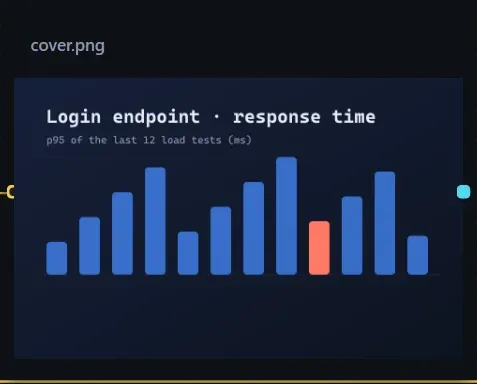
Select a resource card that points to an image file and turn on Show on the canvas. After a run it switches to the latest image.
Placement
Section titled “Placement”Choose in Canvas display settings under Placement:
| Option | Effect |
|---|---|
| Fit (default) | The whole image is visible; small images are not enlarged. |
| Fill | Fills the card, and whatever overflows is cropped. |
| Actual | Shown at its original size; the only option where Zoom applies. |
With Hide title on, the title fades out when the card is neither selected nor hovered, leaving a cleaner image.
Viewer
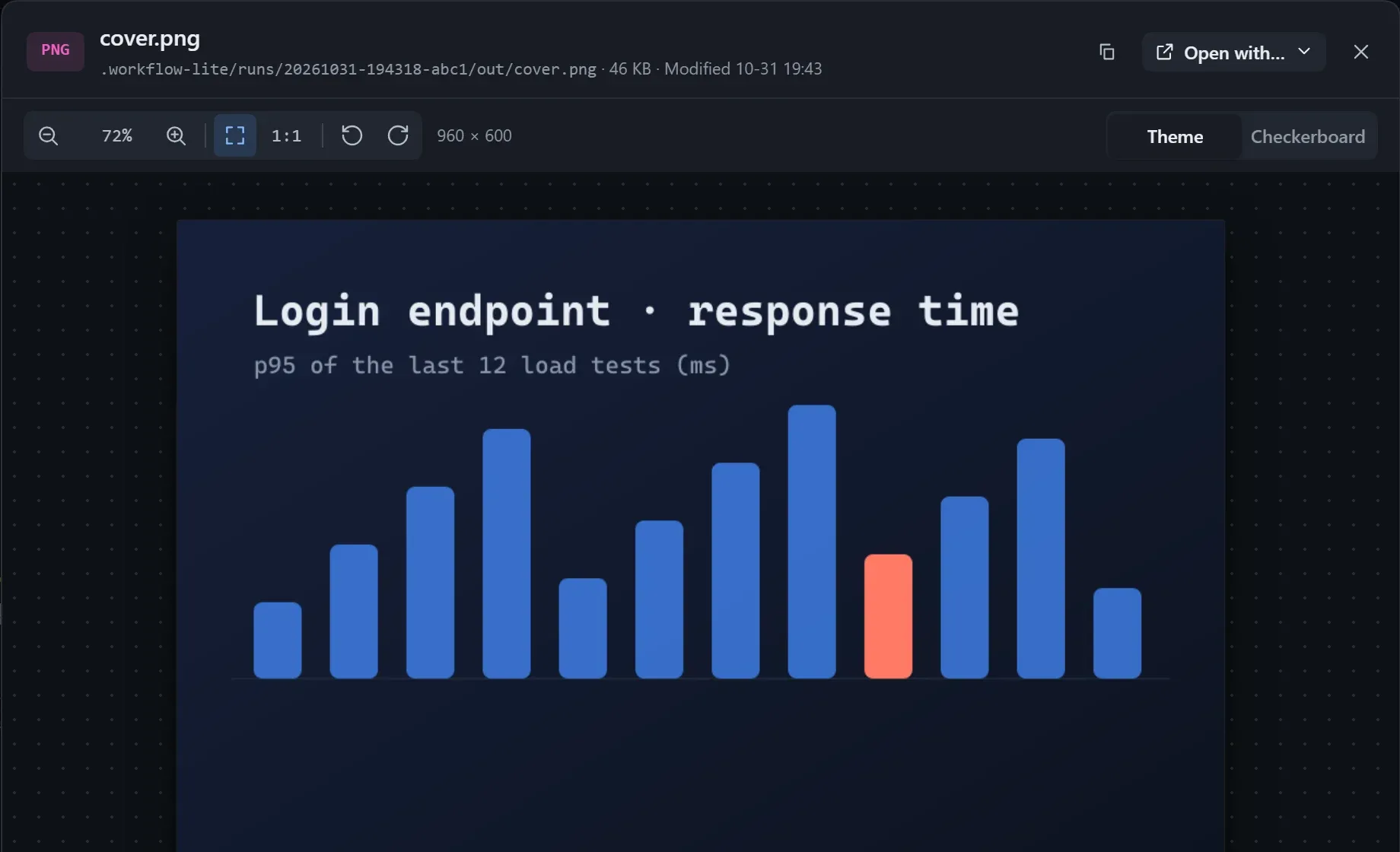
Section titled “Viewer”Double-click the card to open the viewer:
| Action | How |
|---|---|
| Zoom | Scroll wheel, or zoom in and out on the toolbar. |
| Pan | Drag. |
| Fit and actual size | Double-click to toggle; 0 fits the window, 1 is actual size. |
| Rotate | R clockwise, Shift+R counter-clockwise. |
| Background | Switch to a checkerboard at the top right to see the edges of transparent images. |
| Close | Esc. |
- Have the step that writes the image produce it at the card’s proportions (Have the model fit the card is on by default); it looks better in the card.
- In a loop, each round’s image is saved as a version, and you can compare them side by side or with a draggable divider; see Reviewing each round’s output.