Steps and connections
Add steps on the canvas, write prompts, and use connections to decide order and branches.
A workflow is made of steps and connections. A step says what to do; connections decide the order, and with a condition they branch or send the flow back for rework.
Add a step
Section titled “Add a step”- Drag one from the Step library on the left onto the canvas.
- Right-click an empty spot on the canvas and choose the step to add.
- Select a step and click Add next step.
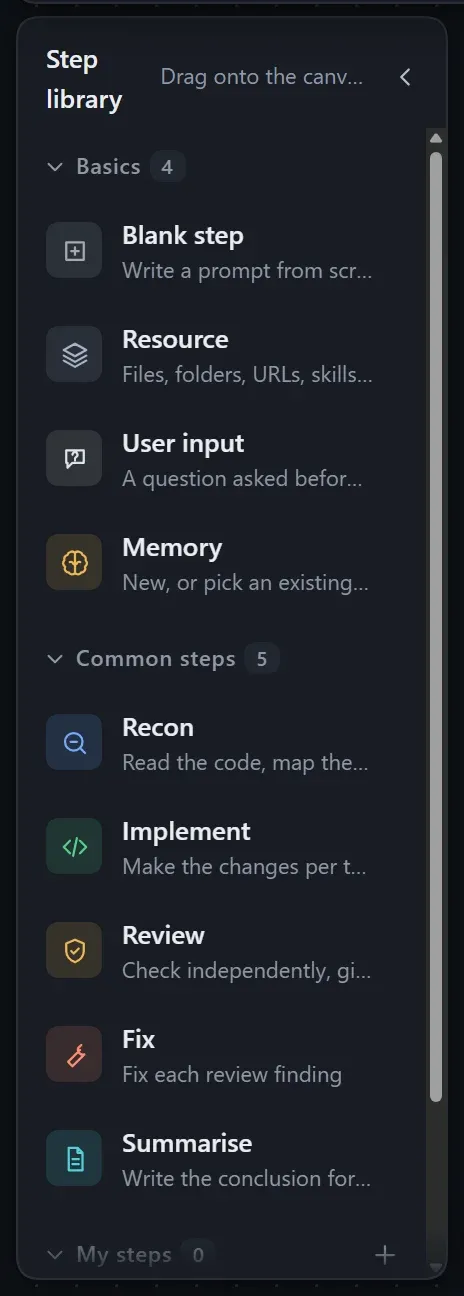
The library has three groups: Common steps (Recon, Implement, Review, Fix, Summarise), Basics (blank step, user input, resource, memory) and My steps. Built-in steps can be edited freely once on the canvas; click Save to my steps to reuse one long term.
Edit a step
Section titled “Edit a step”Select a step and edit it in the right panel.
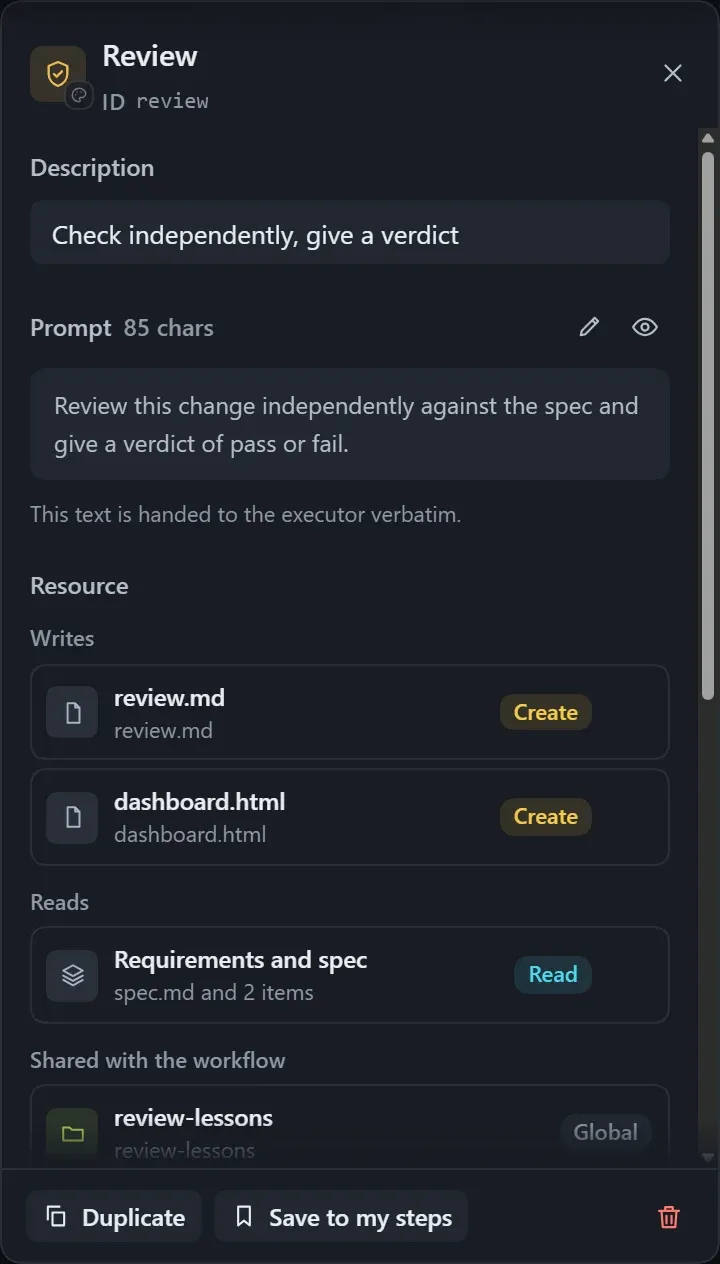
| Setting | Description |
|---|---|
| Name | Shown on the canvas and in the plan. |
| Prompt | Tells the executor what to do and what to produce; handed over word for word. |
| Description | A one-line summary, for people only. |
| Icon and color | Click Change icon and color to choose. |
| Output file | A file this step writes, with a path relative to the working folder; downstream steps read it from there. A Generation rule can set the format. |
An output file can be declared in three ways: Write a file, No file (the step only does work and leaves no file) and Undeclared. Files can also live in a resource card.
Duplicate makes a new step with “copy” in its name. After Delete step, press Ctrl+Z to undo. A step that has already run in an instance cannot be deleted; set it to Skipped instead.
Connections
Section titled “Connections”- Drag a line out of the solid dot on the right of the upstream step.
- Release it on the downstream step.
- Click the line and set its Condition in the right panel.
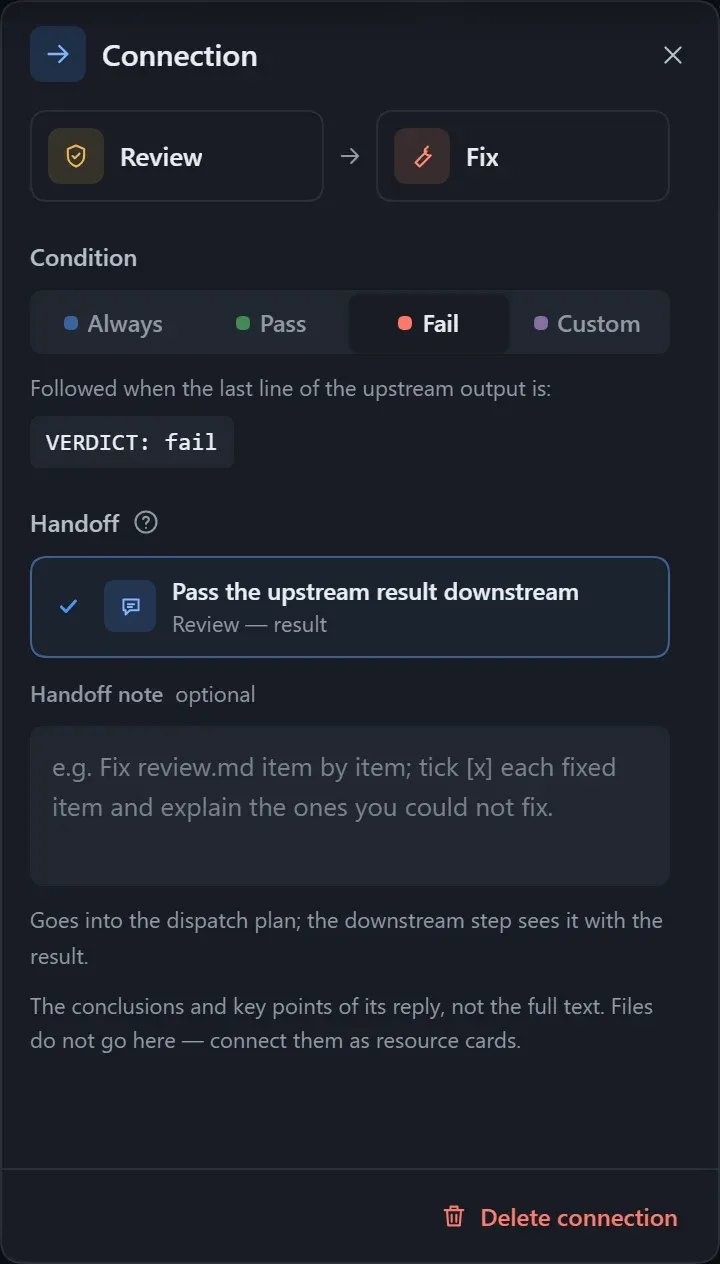
| Condition | Effect |
|---|---|
| Always | Run the downstream step once the upstream one is done. |
| Pass | Follow this line when the upstream step’s verdict is pass. |
| Fail | Follow this line when the verdict is fail; often used to go back for rework. |
| Custom | Write a condition such as “all tests pass”; the executor judges whether it holds. |
Pass and Fail need the upstream step to give a verdict at the end of its reply. The built-in Review step already does; for your own steps, say so in the prompt. Conditional lines are mutually exclusive: only one is followed each time.
Handoff
Section titled “Handoff”| Option | Effect |
|---|---|
| Pass the upstream result downstream | The default. What is delivered is the conclusion and key points from the upstream reply, not the full text. |
| Order only | The downstream step waits for the upstream one to finish but receives no result. |
| Handoff note | Add one sentence to the plan, such as “fix each point in review.md”. |
Files are not passed through the handoff; put them in a resource. Click Edit handoff on a line to change it directly.
Tidy up and save
Section titled “Tidy up and save”| Toolbar | Effect |
|---|---|
| Tidy up | Arranges steps and resources automatically, routing different kinds of lines apart. |
| Fit view, Zoom in, Zoom out | The wheel or a trackpad pinch also works. |
| Undo, Redo | Undo and redo edits. |
| Preview plan | Shows the compiled plan. |
Edits are saved automatically; the top bar shows Saving, Saved, Unsaved or Save failed. If the file was changed elsewhere, you are asked to Reload, and on a conflict you can choose Keep mine or Use disk. The Checks panel lists Errors, Must fix, Warnings and Suggestions; when it shows No problems the workflow can run, and with errors it cannot.
For the autosave delay and the step limit, see Plugin settings and themes.