Versions
Save versions of a workflow, compare differences, and switch back at any time.
Save a good state as a version, and switch back if later edits go wrong. A version stores the steps, connections and workflow settings as they were.
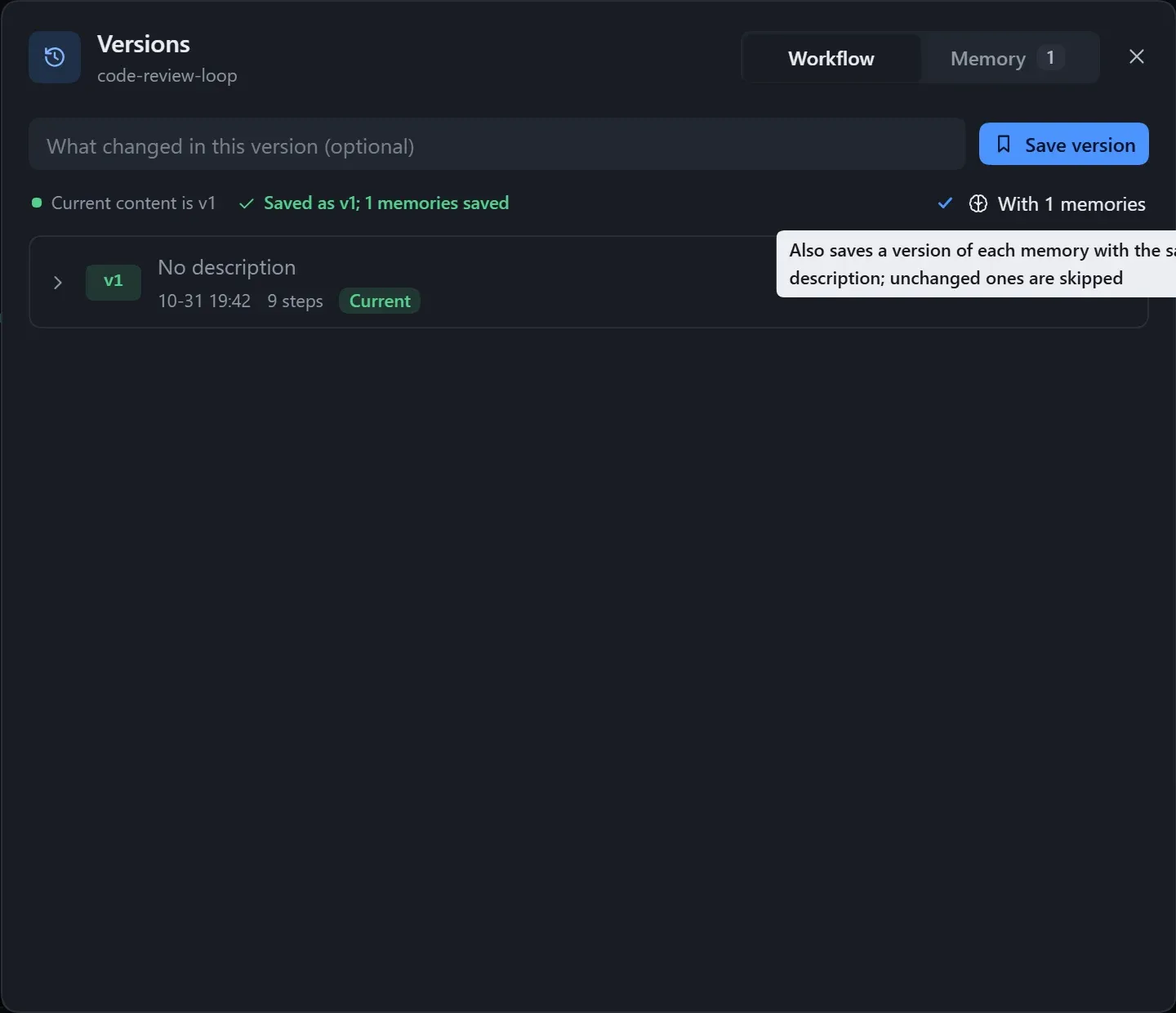
- Click Versions in the canvas top bar.
- Write a short note (optional) and click Save version.
- To go back to a version, expand its row to see the changes that switching to this version brings, then click Switch to this version and confirm.
If the current content has not been saved as a version, one is saved automatically before switching, with the note “Auto-saved before switching to vN”, so you can always switch back.
A yellow dot on the Versions icon means the current content has not been saved as a version. In the list, the version matching the current content is marked Current. You can also Edit description or Delete a version.
Limits
Section titled “Limits”- A note is at most 500 characters; each workflow keeps at most 100 versions, so delete the oldest once it is full.
Versions of memories
Section titled “Versions of memories”The dialog has two tabs, Workflow and Memory. Tick “With N memories” when saving a workflow version and each memory is saved as a version too; unchanged ones are skipped. See Memory.
- Deleting a workflow deletes all its versions with it, and this cannot be undone.
- Export includes saved versions only; see Import and export.