Folders and image walls
Show a folder on the canvas as an image wall or a file list, and browse its files in an instance.
With Show on the canvas on, a folder resource can be laid out as an image wall or a file list. When steps write images into one folder, the canvas shows every one of them from newest to oldest.
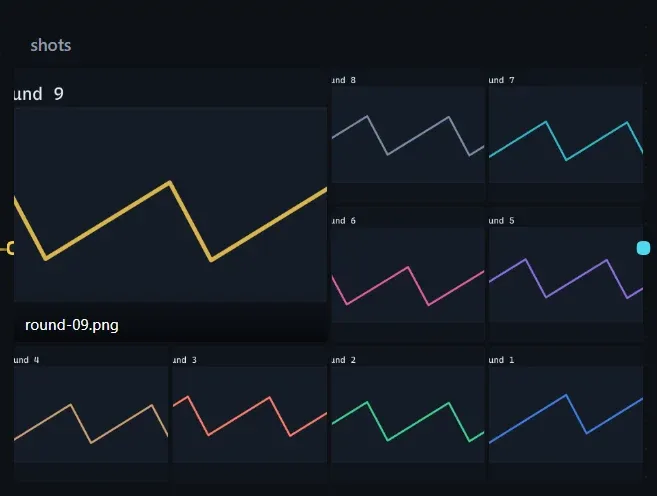
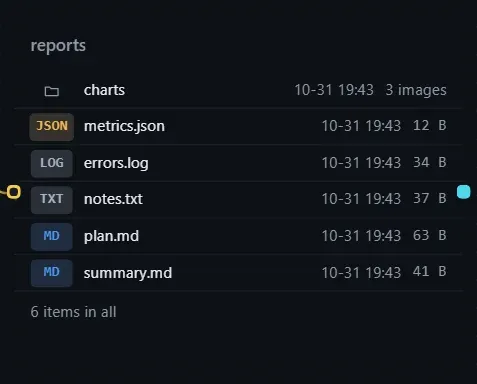
- Select a resource card that holds a folder and turn on Show on the canvas.
- Choose how to Show it in Canvas display settings.
- Click an image in the wall to browse it in the viewer.
Files show their size and subfolders show how many items they hold (“N images” when they are all images); the list ends with “N items in all”. An empty folder shows “Folder is empty”; when there are too many files only some are listed, with “N more”.
Settings
Section titled “Settings”| Setting | Description |
|---|---|
| Show | Auto (an image wall if there are images, otherwise a file list), Images, Files. |
| Match | Filter by name; * stands for anything and commas separate several patterns, such as *.png, report-*. |
| Order | Newest first, By name, By size. |
| Wall layout | Wall, Large + strip, Latest only. |
| Images | Auto follows the card size; Fixed sets columns and rows, and enlarging the card only enlarges the tiles. |
| Enlarge the newest | The first image takes two columns and two rows; needs at least three columns and two rows. |
| File list layout | List or Grid, with an optional Show modified time. |
Browse in an instance
Section titled “Browse in an instance”Open a folder resource to get two panes: on the left a path bar, a filter box and the file list, on the right a preview of Markdown, HTML and images.
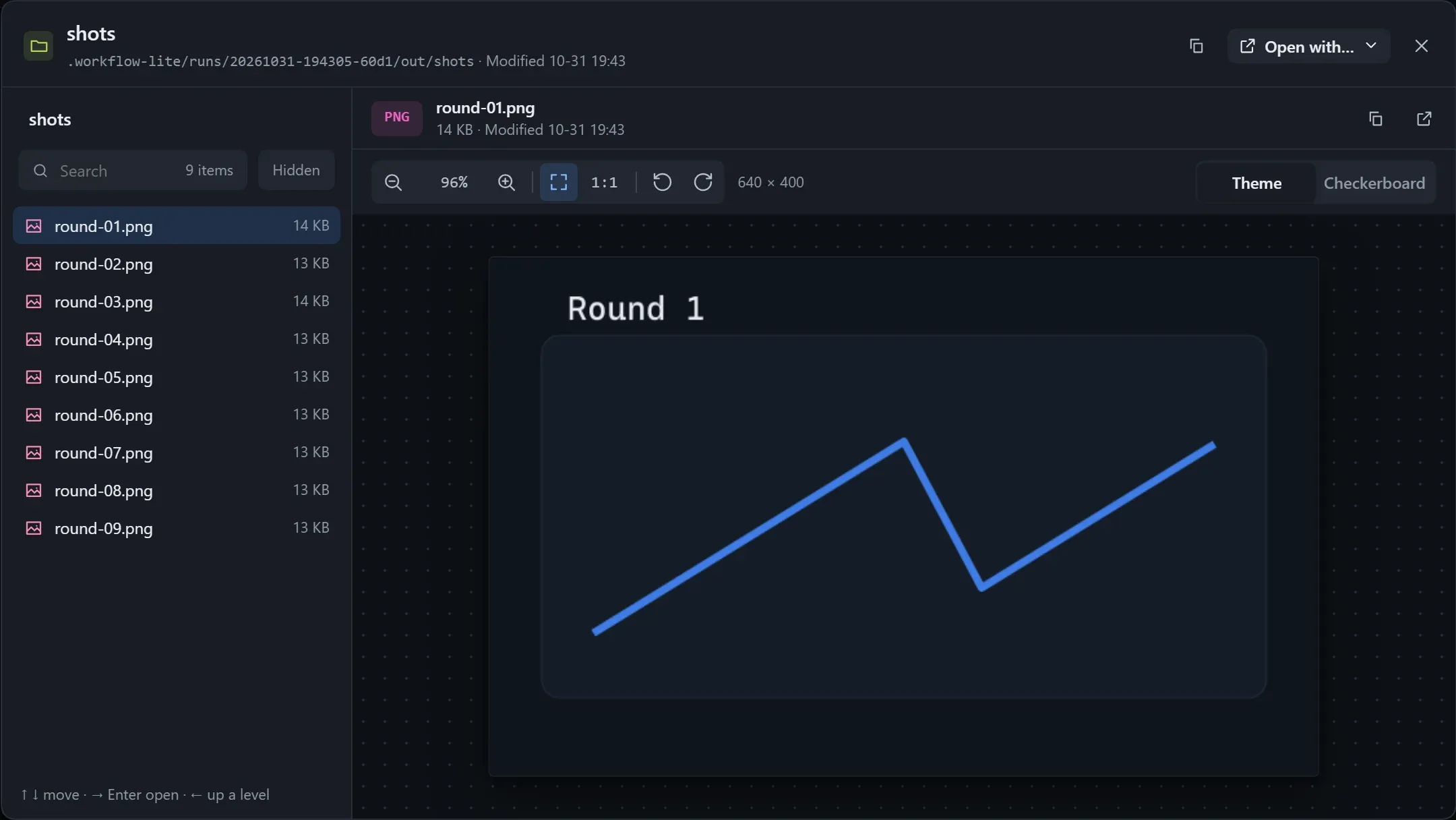
- Keyboard: up and down to select, right arrow or Enter to open, left arrow or Backspace to go back.
- When the filter box finds nothing, it says “Nothing here has ‘…’ in its name”.
- The image wall only lays out images at this level, not those in subfolders; have steps write images straight into this folder, with the round in the file name (such as
r02-chart.png). - The window for choosing a folder lists folders only; when nothing is ticked the main button reads This folder, and once something is ticked it becomes Add.