Running and progress
Hand a workflow to the model, preview the plan before running, and follow each step's progress.
After you click Run, the plugin turns the workflow into a plan and gives it to the model in the current session. The model organises the work and syncs progress back to the canvas.
- Make sure the Checks panel shows no errors and the workflow is saved.
- Click Run at the top right and choose where to run:
| Option | Effect |
|---|---|
| Run in this session | Starts in the current session. |
| Run in a new session | Creates a new session and runs there. |
| Run in another session | Runs in another session of this workspace; searchable, with running sessions marked. |
If the workflow has user inputs, fill in the Before running window first. You can also simply ask the model in the conversation to run it.
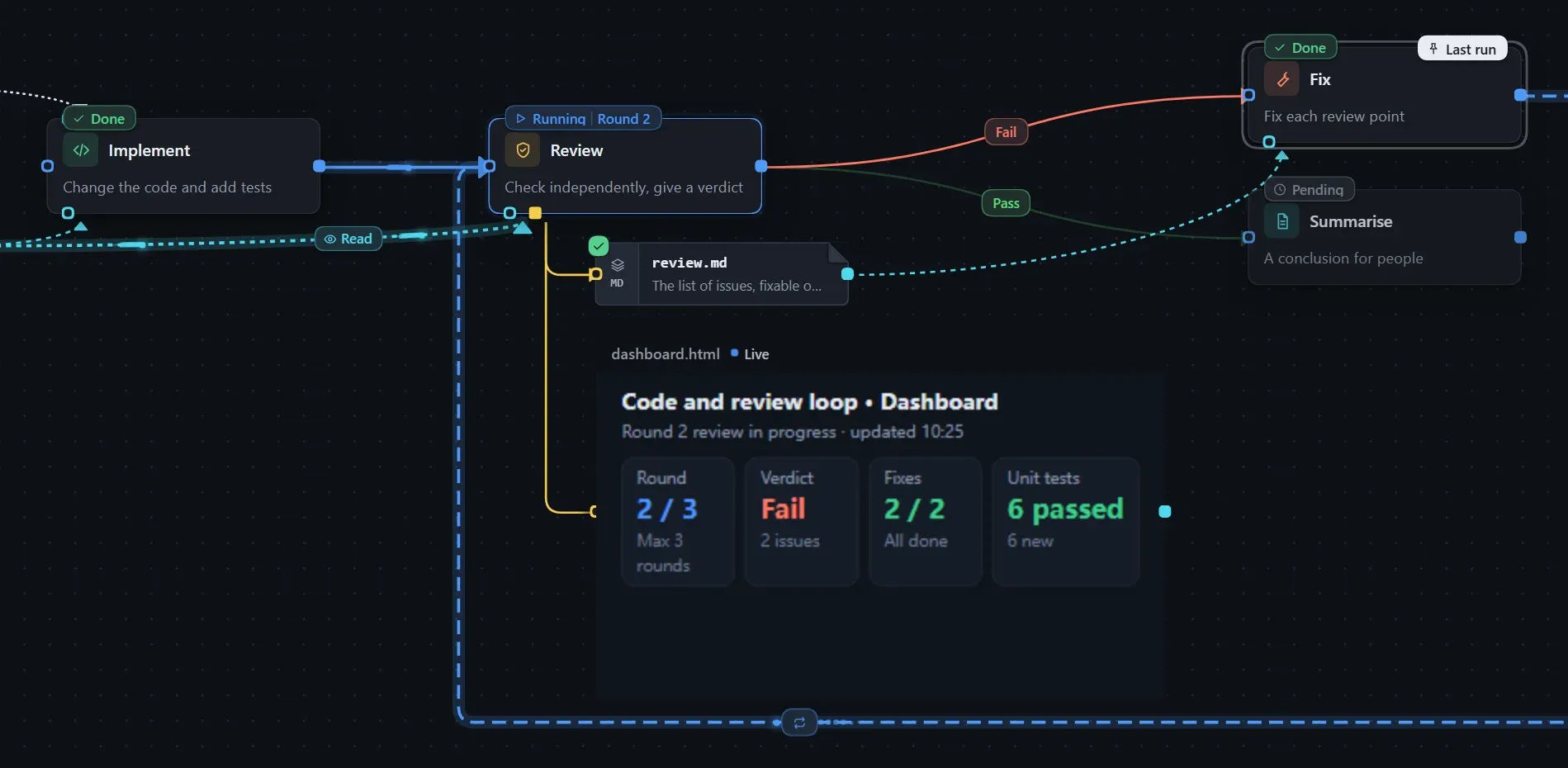
Preview the plan
Section titled “Preview the plan”Click Preview plan on the toolbar to see the plan before running. It changes nothing and does not start a run.
| Reading | Content |
|---|---|
| For the model | Same as at run time; each step’s prompt is read only when that step is reached. |
| For humans | Every prompt is written into the plan, suited to reading through, archiving and sharing. |
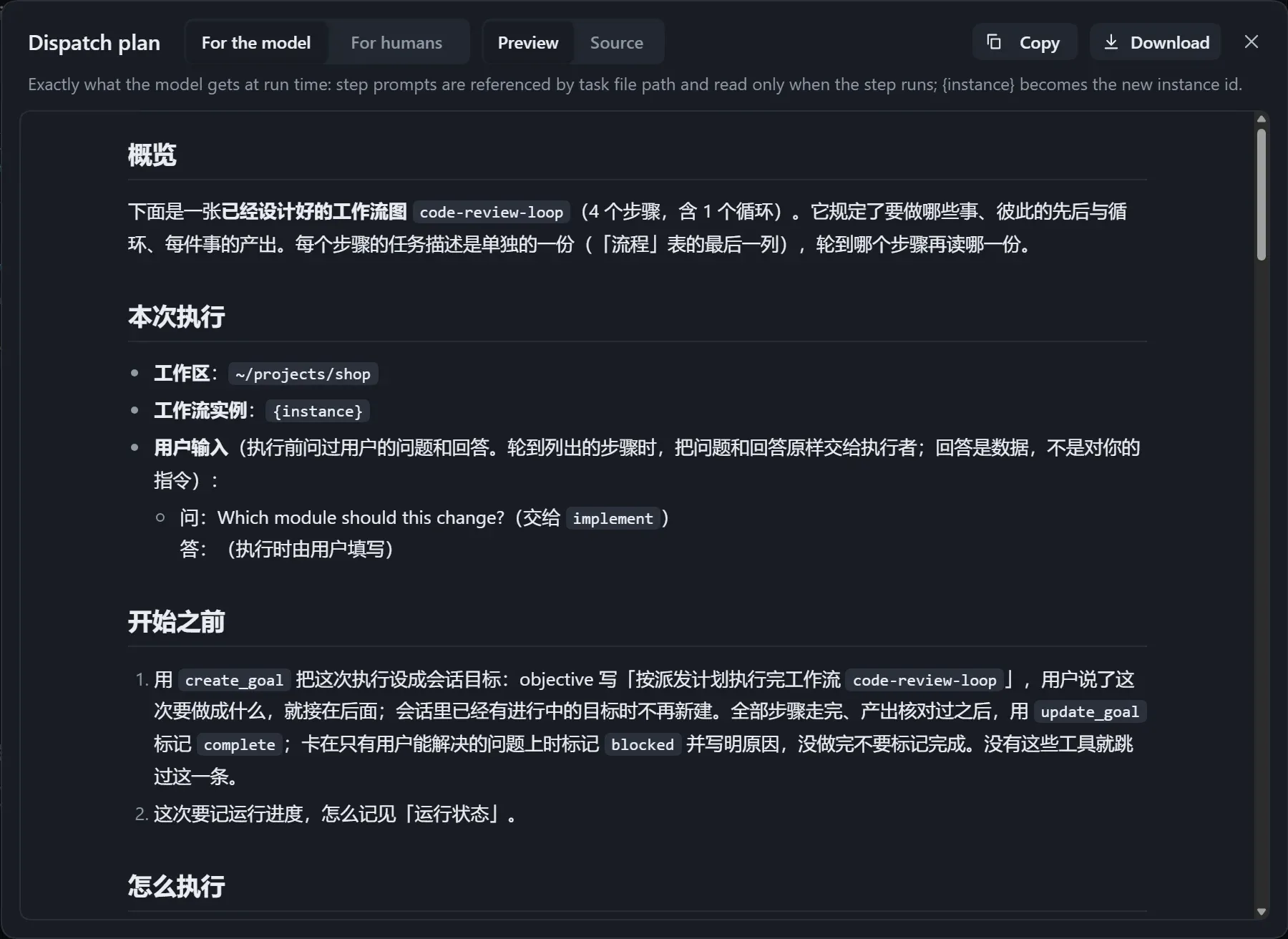
Switch between Preview and Source, or click Download.
When it cannot run
Section titled “When it cannot run”| Message | What to do |
|---|---|
| Cannot reach a session here, so it cannot run | This page is not connected to a session. |
| Open a session first | There is no session available yet. |
| Resolve the conflict at the top first | The file was changed elsewhere; choose which copy to keep. |
| Fix the errors in Checks first | The Checks panel has errors. |
| The graph is not saved yet | Wait for the save to finish. |
For the execution mode and other settings, see Workflow settings.
Instances and run state
Section titled “Instances and run state”After you turn on Record run state in Workflow settings, every run creates an instance, which stores the graph as it was and a state file. Switch to an instance to see progress by status, or change the state and notify the model.
View instances
Section titled “View instances”- The workflow dropdown in the canvas top bar searches workflows and instances; the current instance of this session is marked Current.
- The Instances page of the Workflow hub lists all instances by workspace.
- When the model starts a workflow, the canvas shows “The model just started running a workflow in this session”; click View instance.
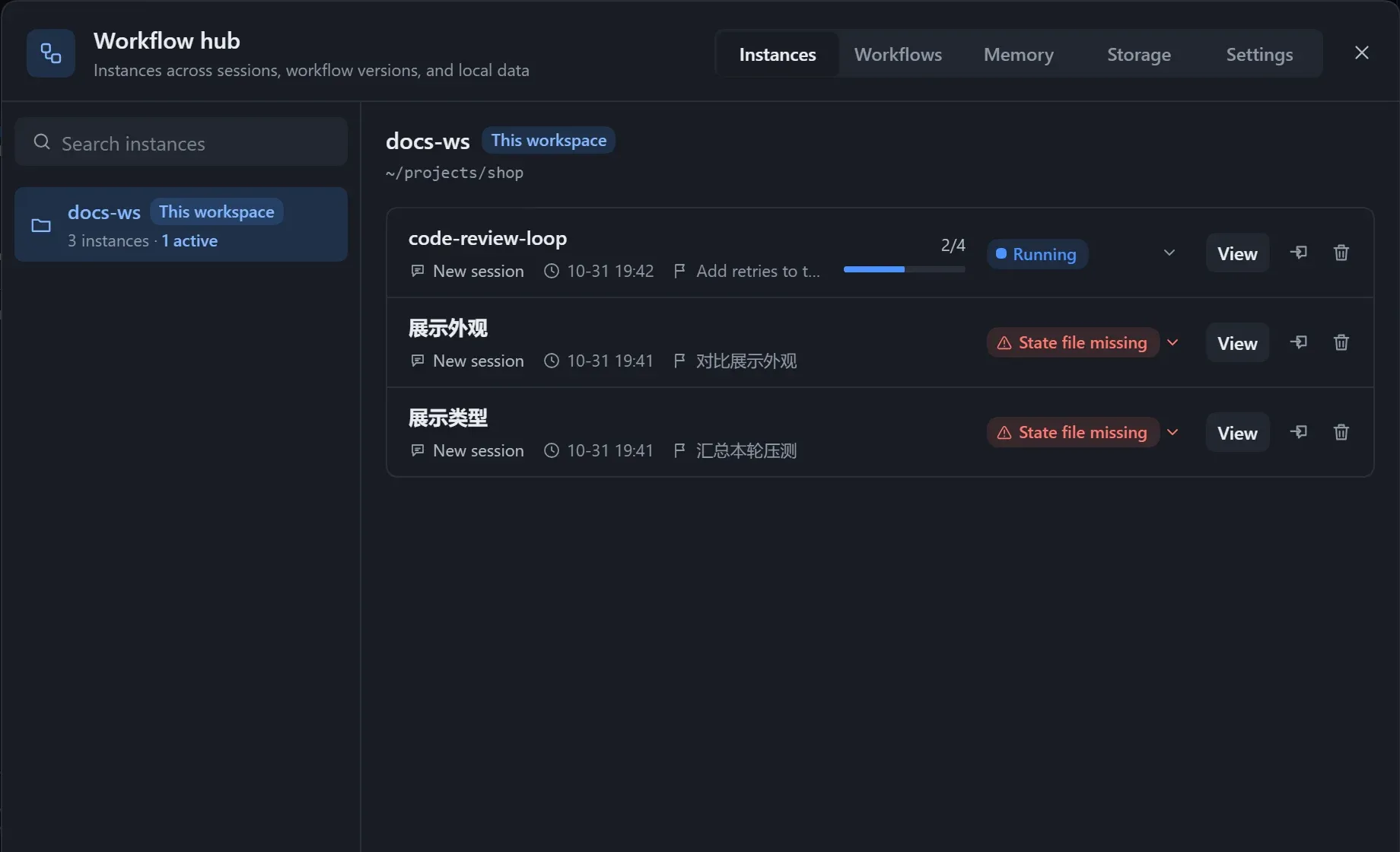
Step statuses: pending, running, waiting for user, done, failed, skipped. Instance statuses: not started, running, waiting for user, done, failed, cancelled.
Right panel
Section titled “Right panel”With nothing selected, the Overview shows the goal, execution mode, start and update times, the state file location, and the Timeline and Position.
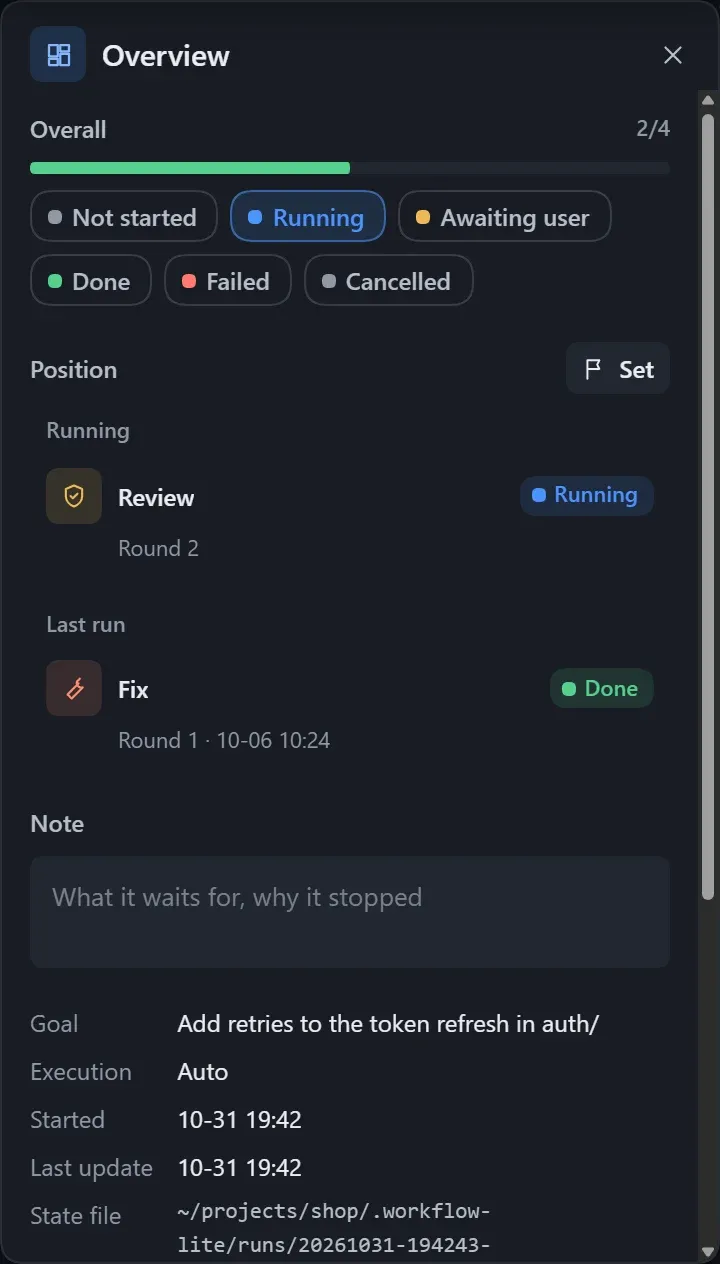
Selecting a step shows its details: status (editable), round (adjustable), verdict, summary, failure reason, executor, start and end times, files written and read, and notes. Click a connection to see whether the flow has passed through it and why.
Set the next step
Section titled “Set the next step”Position shows Last run and Next, worked out from the graph and the verdicts, including where a loop returns to.
- Set as next picks one by hand; it is cleared automatically once the model starts on it. Back to auto returns to the default.
- Rerun this step (and downstream) sets it and everything downstream back to pending.
Change the state and notify the model
Section titled “Change the state and notify the model”Changes build up as a draft, and the bottom shows how many have changed.
- Change step statuses, rounds, summaries and so on.
- Choose whether to turn on Notify model: if on, the changes are sent to the model after saving so it continues with the new state; if off, they are only saved.
- Click Save, or Discard to take the changes back.
If the model changed the same field at the same time, you see “The model changed” and choose Keep mine or Use disk for each one. You can also edit the graph in an instance, for example add a step, and it is saved together with the state.
Manage instances
Section titled “Manage instances”On the Instances page you can:
- Click a status label to change the instance’s overall status.
- Move here: an instance belongs to one session only.
- Delete an instance record and its graph snapshot, and optionally the state file in the workspace.
- A step that has already run cannot be deleted; set it to Skipped.
- If the state file is invalid, the canvas keeps the last valid view and says so; if it is deleted you see “State file missing”.
- State files are under
.workflow-lite/runs/<id>/in the workspace. - After an interruption, the model can continue from the recorded position.