Resources
Give a step the files, folders, URLs, skills or custom prompt text it should read or write.
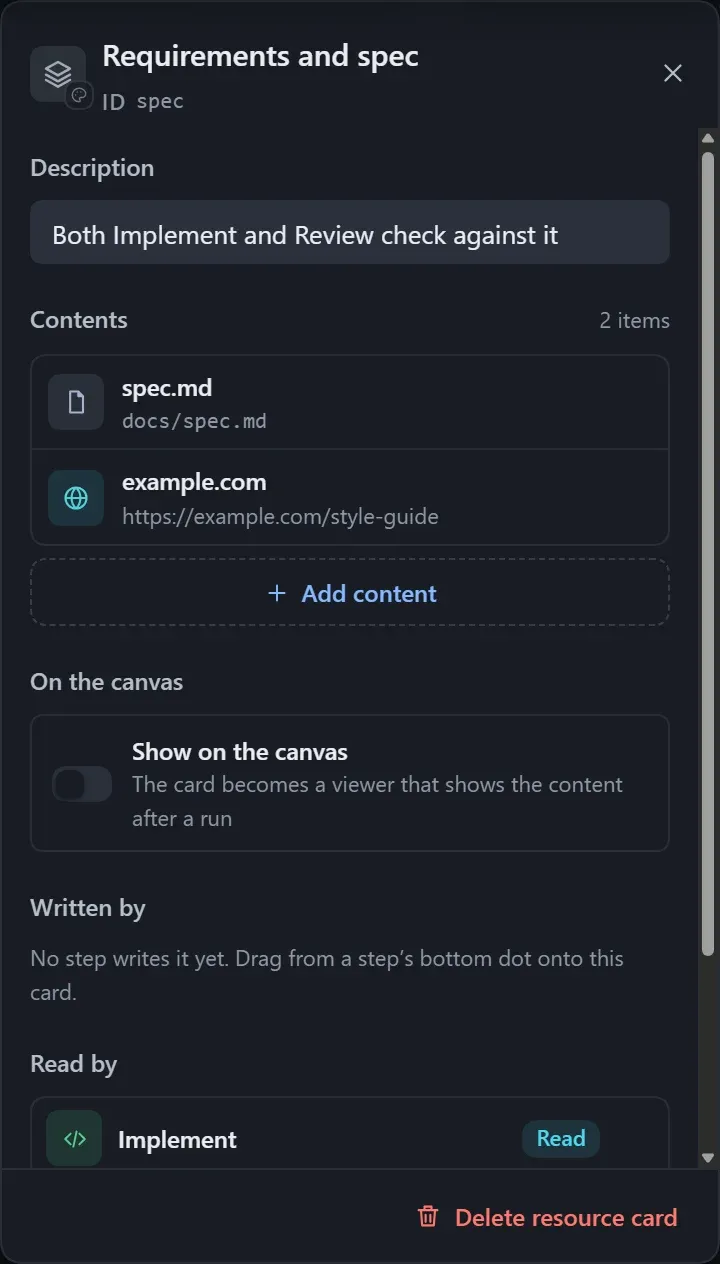
A resource is a separate card on the canvas, and lines show how steps read and write it. When several steps connect to the same resource, it is one shared copy.
| Type | Use |
|---|---|
| File | A file to read, write or update, such as a requirements document or a report. |
| Folder | A directory to read from or write to. |
| URL | The executor opens it to look. |
| Skill | The executor loads it first, then does the task the way it describes. |
| Custom | A prompt you write yourself; steps that read it receive it as written. |
Add and connect
Section titled “Add and connect”- Drag Resource from Basics in the step library, or right-click an empty spot and choose Resource.
- Drag from the dot at the bottom of a step to an empty spot and choose Output file to get a resource card that this step writes.
- Select a resource card and click Add content; one card holds up to 50 items.
The direction of the line decides read or write:
- From a step to the resource card: the step writes it. Choose to write the whole file (overwrite) or to update it in place (read first, then change, such as ticking items in a checklist).
- From the resource card to a step: the step reads it.
- A resource with no step connected belongs to the whole workflow, and every step can use it.
How to add content
Section titled “How to add content”| Type | How |
|---|---|
| File, folder | Pick on the host; for an output file not yet written, type the path. |
| URL | Enter the address. |
| Skill | Choose from the skills detected, or type a name. |
| Custom | Write some text, up to 20000 characters. |
Each item can carry its own note telling the executor how to use it; for a file that is written, the note can set the format. Change color and type can turn an empty card into Memory; see Memory.
- An absolute path is used as is;
~is not supported. - A relative path goes under the output root when a step writes it, and is relative to the workspace when it is only read.
- Two variables are available:
| Variable | Replaced with |
|---|---|
{workflow} |
The workflow’s own folder (by default ~/.dsh/workflow-lite/assets/<workflow name>/); the same copy in whichever workspace it runs, and exported along with the workflow. |
{instance} |
The instance number of this run; used in the Output root, so each run’s output goes to its own place. |
- An identical item shows “Duplicate”; a skill that cannot be found in the current workspace gets a warning that it may not load when running.
- To preview a file right on the canvas, see Canvas display.